The SysGauge system monitor provides a large number of configuration options allowing one to configure and customize the product for user-specific
needs and preferences. In order to open the SysGauge options dialog, press the 'Options' button located on the main toolbar.
The 'General' tab provides the ability to control the following options:

- Show Main Toolbar - enables/disables the main toolbar.
- Check For Product Updates - when this option is enabled, SysGauge will automatically check for new product versions during the program startup.
- Show Error Messages in System Tray - when this option is enabled and the SysGauge GUI application is minimized in the system tray, SysGauge will display error messages in the system tray area.
- Show Warning Messages in System Tray - when this option is enabled and the SysGauge GUI application is minimized in the system tray, SysGauge will display warning messages in the system tray area.
- Set Memory Usage Fixed Maximum - when this option is enabled, SysGauge will set the total available system memory as the maximum value for all memory usage counters.
- Show Verbose Debug Messages - this option enables extensive debug messages, which may be useful when investigating abnormal behavior.
- Minimize To System Tray - when this option is enabled, the SysGauge main GUI application will minimize to a system tray icon, allowing one to control the system monitoring process via the SysGauge system tray menu.
- Start Minimized - when this option is enabled, the SysGauge main GUI application will start minimized as an icon in the system tray area.
The 'Reports' tab allows one to control a number of reports generation options including the default monitoring report title, the system monitoring counters history length,
the monitoring reports mode for e-mail notifications, the format of reports included in e-mail notifications and provides the ability to automatically generate system monitoring
reports in a user-specified directory.
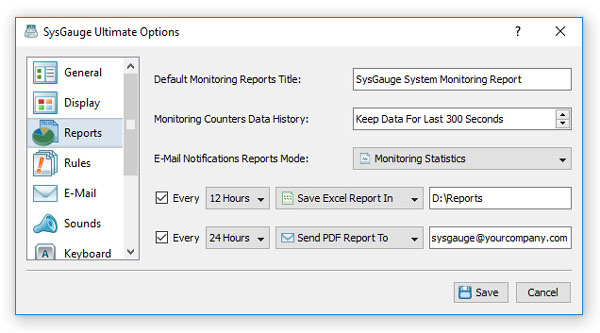
The 'Reports' tab provides the ability to control the following configuration options:
- Default Monitoring Reports Title - this option provides the ability to specify a default report title for all types of system monitoring reports.
- Monitoring Counters Data History - this option provides the ability to control how much of the system monitoring data is kept in the system memory and saved in all types of system monitoring reports.
- E-Mail Notifications Reports Mode - this option allows one to control the reports generation mode for all types of reports included in E-Mail notifications.
- Periodic Reports Generation - this options provides the ability to periodically generate system monitoring reports in a user-specified directory.
- Periodic Status E-Mail Notifications - this option allows one to specify an e-mail address to send system monitoring status reports according to the user-specified time interval.
The 'Advanced' tab provides a number of advanced configuration options allowing one to configure periodic status report generation,
periodic status E-Mail notifications and customize system monitoring error actions.

The 'Advanced' tab provides the ability to control the following configuration options:
- Repeat Sound Notifications - this option provides the ability to control how frequently to repeat sound notifications when SysGauge continuously detects a system monitoring error.
- Repeat E-Mail Notifications - this option provides the ability to control how frequently to repeat E-Mail notifications when SysGauge continuously detects a system monitoring error.
- Repeat Log Notifications - this option provides the ability to control how frequently to repeat system log notifications when SysGauge continuously detects a system monitoring error.
- Repeat Custom Actions - this option provides the ability to control how frequently to repeat custom error actions when SysGauge continuously detects a system monitoring error.
- Keep Monitoring History Data - this option allows one to set for how long to keep the system monitoring data while the system monitor is active.
- Periodic Status Reports - this option allows one to periodically save system status reports in a user-specified directory.
- Periodic Status Notifications - this option allows one to periodically send status E-Mail notifications to a user-specified E-Mail address.
The 'Display' tab provides the ability to customize various chart and gauge colors including the chart text color, chart line color,
chart fill color, chart grid color, chart border color and chart background color.

The 'Shortcuts' tab allows one to customize keyboard shortcuts for the following keyboard commands:
- Online Help - this keyboard shortcut opens the online help window.
- Save Report - this keyboard shortcut saves a system monitoring report.
- Pause/Resume Monitor - this keyboard shortcut pauses or resumes the system monitor.
- Advanced Options - this keyboard shortcut opens the SysGauge options dialog.
- Reset Monitor - this keyboard shortcut resets the system monitor and clears all system monitoring data, which is useful when starting a new monitoring session.
- Open Message Console - this keyboard shortcut opens the debug message console.
- Switch GUI Layout - this keyboard shortcut switches the SysGauge GUI application to the next GUI layout.
- Close Application - this keyboard shortcut closes the SysGauge GUI application.

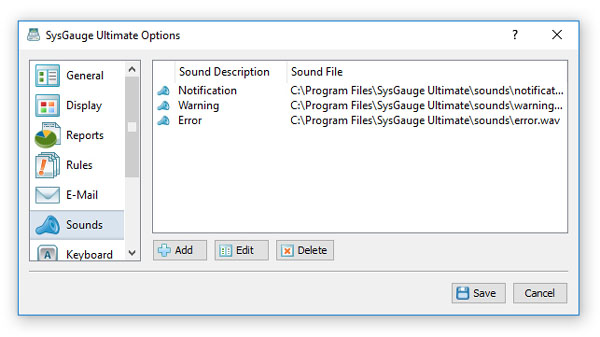
The 'Sounds' tab allows one configure custom sounds used for sound error and warning notifications. In order to add a new notification sound,
press the 'Add' button and select a sound file. In order to change a sound file, select the required sound item in the list and press the 'Edit' button.
In order to delete a sound file, select the required sound item and press the 'Delete' button.
The 'E-Mail' tab provides the ability to configure an SMTP server to use to send E-Mail error and warning notifications. First of all,
enable E-Mail notifications and then specify a source E-Mail address, SMTP server name, port number, SMTP user name and SMTP password.

If required, enable the secure connection mode and select an appropriate secure connection protocol to be used to send E-Mail notifications.
Once finished configuring the SMTP server options, press the 'Verify' button to check the SMTP server configuration.


